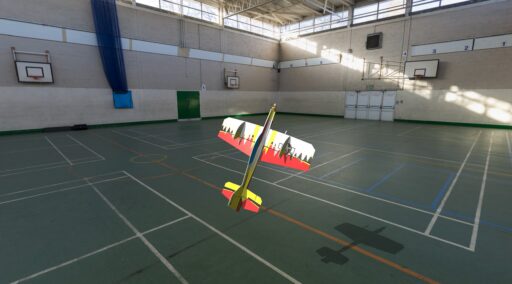
To install the flying site on your copy of RealFlight Evolution:
- Download the RFX file from here.
- Open RealFlight Evolution and select “My RealFlight” > “Import” > “RealFlight Archives” from the menu.
- Locate the “IVCMAC_Sports_Hall” RFX file you downloaded and click open.
- The file will be imported and will then be available under the Airport selection menu.
Tip regarding optimal camera view settings:
For indoor flying sites I find it better to use the “Manual Zoom” view type with a value of 60.
Here is how to set that up:
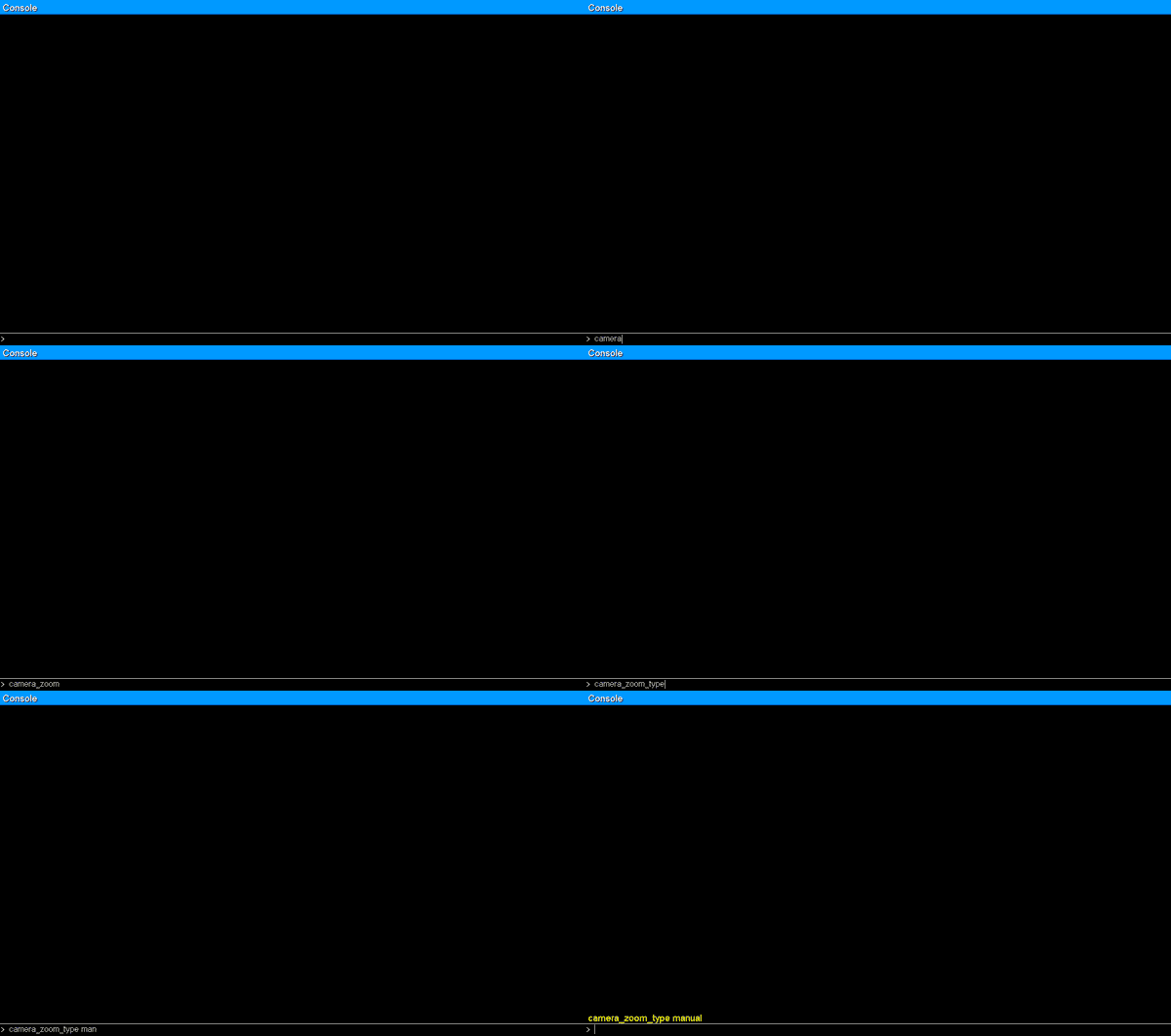
1) There are couple of ways to set the zoom type. One is to tap your “Z” key to cycle through the options, a confirmation will show in the bottom left corner that the zoom type has changed to “Manual Zoom”. The other method is to enter a command into the console. You do this by opening the console with the backtick key ( ` ) and then entering the camera_zoom_type manual command into the console, as below:
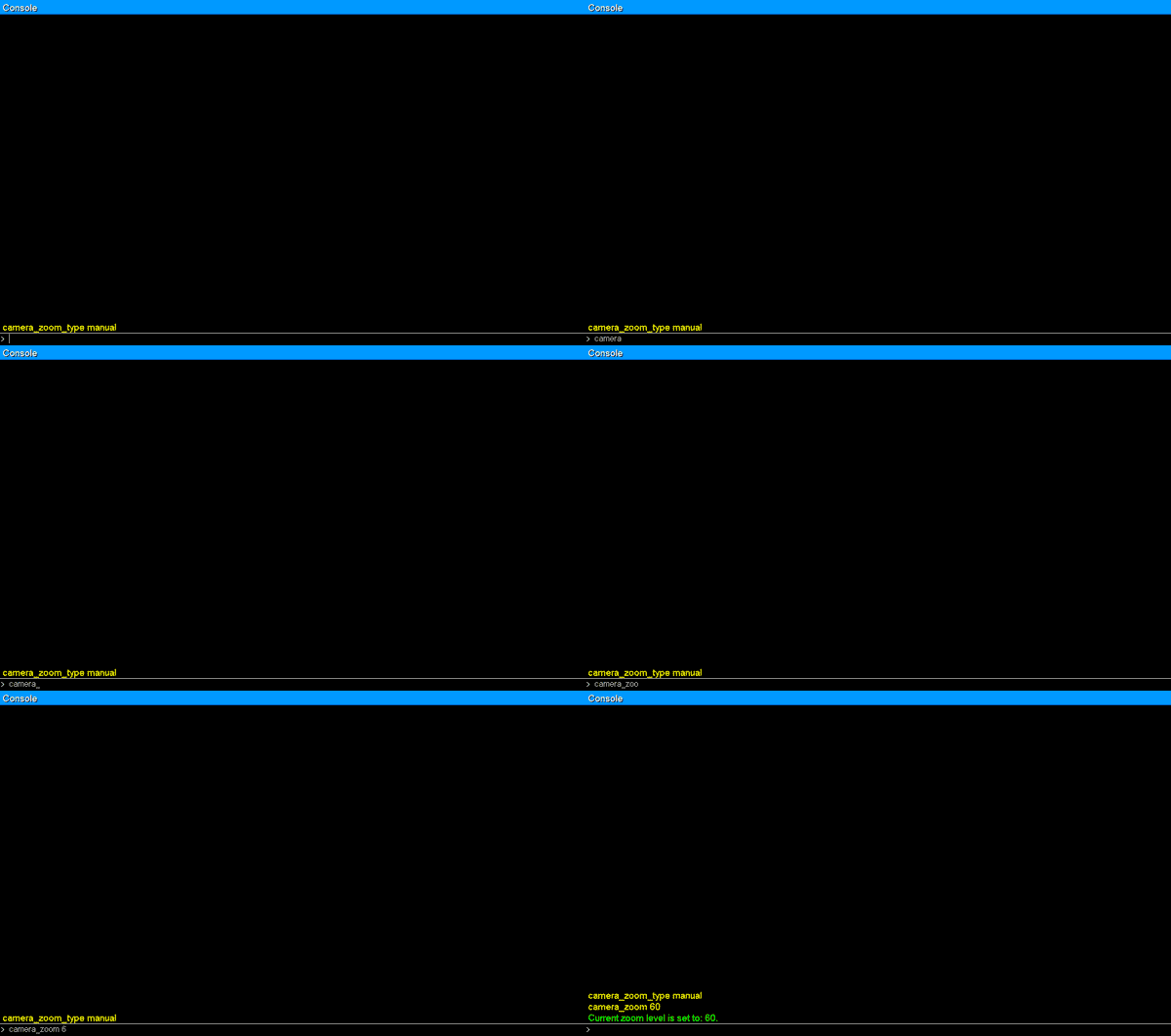
2) You can set the zoom value with the + and – keys however I do not believe there is any indication of the zoom value unless you check in the console with the camera_zoom command. A better way is to set the zoom by an exact value via the console with the command camera_zoom 60, as below:
This is of course personal preference and I would suggest experimenting to see what settings work best for you, but for a 16:9 monitor manual zoom at 60 seems like a good starting point.